Flexible Multi-Object Selection Rays
CS 5678: 3D User Interfaces - Spring 2024 - XR Collaboratory, Cornell Tech
Students: Connor Pugh, Jacob Hsiung
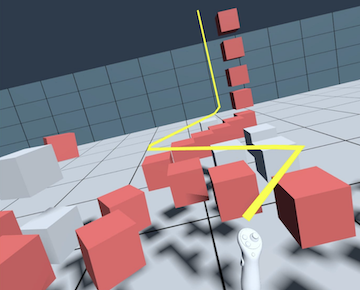
Project slide (includes controls): https://docs.google.com/presentation/d/1pg7ncvozu_BhLvtsr-fgRCCeOBAvefdjKz9lwSLI2os/edit?usp=sharing
Overview
This package extends the Flexible Pointer technique and explores its applications for multi-object selection in a complex and cluttered environment. The user defines a complex curve with an arbitrary number of control points using intuitive input methods, and then is able to select multiple objects along the curve easily.
Inspiration:
A. Olwal and S. K. Feiner. The flexible pointer: An interaction technique for selection in augmented and virtual reality. 2003.
Components
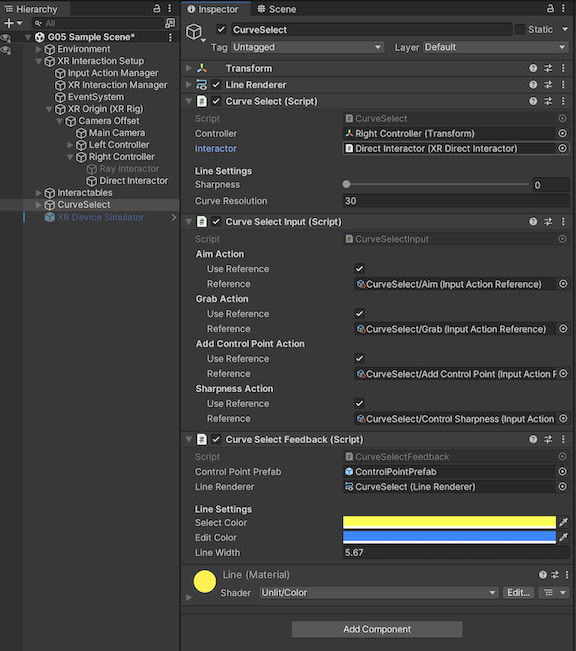
Curve Select
This is the main logic component of the flexible multi-object selection ray technique.
It has two modes; editing and selection mode. In editing mode, the user constructs a flexible curved ray. In selection mode, the user uses that ray to select objects in the scene.
The system supports an arbitrary number of control points, and supports both sharp and smooth curves.
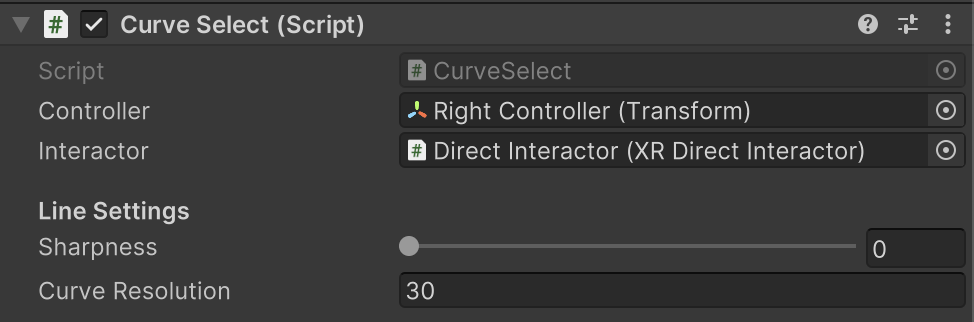
| Property | Description |
|---|---|
| Controller | The transform of the controller the curve emanates from. |
| Interactor | The target interactor we want to use to grab selected objects. |
| Sharpness | The sharpness of the curve. |
| Curve Resolution | The number of points that comprise the curve. Larger values will make smoother curves, but may also cause performance issues. |
Curve Select Input
This is the input component of the curve select technique, which is responsible for detecting the grab action from user input as well as the aiming action.
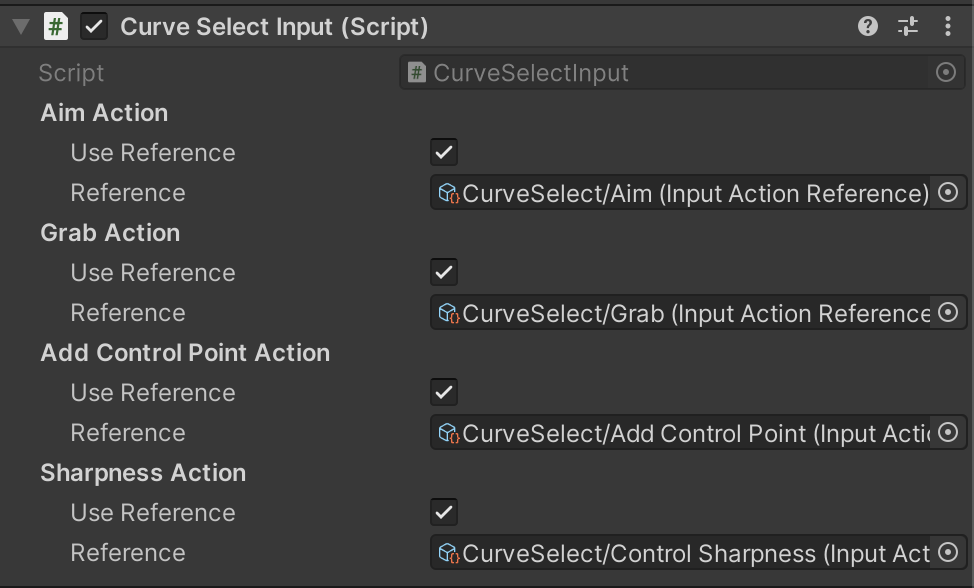
| Property | Description |
|---|---|
| Aim Action | Input action to scale the curve or reel control points, depending on the active mode. |
| Grab Action | Input action to finalize the ray and/or grab objects intersecting with the curve. |
| Add Control Point Action | Input action to add a control point to the Curve, or enter edit mode if not already in it. |
| Sharpness Action | Input action to control the sharpness of the curve. |
Curve Select Feedback
This is the Feedback component of CurveSelect, responsible for giving visual feedback according to the state of the scene, including changing the line renderer color and visualizing sphere.
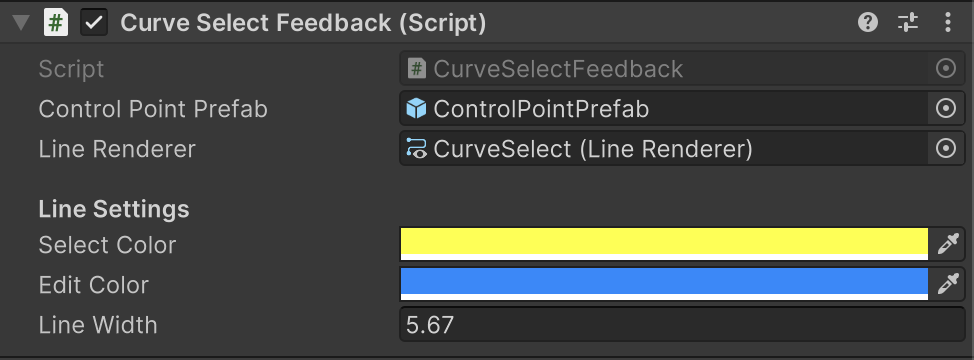
| Property | Description |
|---|---|
| Control Point Prefab | This is the prefab used to visualize control points. |
| Line Renderer | The line renderer responsible for visualizing the curve. |
| Select Color | The color of the selection curve when in selection mode. |
| Edit Color | The color of the selection curve when in editing mode. |
| Line Width | The width of the line visualizing the curve. |
Installation instructions
To install this package, follow these steps:
- In the Unity Editor, click on Window > Package Manager
- Click the + button and choose Add package from git URL option
- Paste the URL to the package repository: https://github.com/cs5678-2024sp/p-project-g-05.git in the prompt and click on Add (make sure your URL ends with ".git")
- If the repository is private, you will be asked to authenticate via your GitHub account. If you haven't been granted access to the repository you will not be able to install the package.
- The package should be installed into your project
- You can download the package samples from under the Samples tab in the Package Manager
Note: Even though the package documentation is public, several XRC packages are private and accessible only to XRC staff and students.
Requirements
This package was developed and tested using the following Unity Editor version:
- 2022.4.7f1 LTS
Dependencies:
- XRC Core
- XR Interaction Toolkit
- Input System
Workflow
See below for a view of the hierarchy and inspector window in the sample scene.
Samples
Project G-05 Sample
A sample containing a test scene demonstrating the interaction technique.